





Account
How to use Bucketlist Golf
Keep a list of the courses you want to play, log the ones you have, and turn either into a real trip. This page covers everything, including the parts the welcome tour moves past quickly.
Prefer to click through it? Replay the two-minute tour.
Start here
The whole app follows one arc. Everything further down this page is detail hanging off these four steps.
Create a free account
It takes an email address and a password. Sign up, confirm the email, and you land in a short welcome tour.
Save the courses you want to play
Tap the heart on any course, anywhere in the app, and it goes onto a list. See Lists.
Log the courses you have played
Use the Been there? panel on a course page. This is what builds your passport, badges and leaderboard place. See Marking played.
Turn a list into a trip
Any list with two or more courses can become a day-by-day route. See Trip Mode.
Lists are the heart of it
Every course you save lives on a list. You start with one called Bucket List, and you can make as many more as you like — one per trip, per country, per whatever you want.
Anywhere you see a course, you see a heart. Tapping it opens a small picker showing all of your lists, so you choose where the course goes — or create a new list right there. A heart only ever means I want to play this; it never marks a course as played.
Managing your lists
My Lists is the hub. Each card shows a preview mosaic, how many courses are on it, and small flags for the countries it covers.
- Open, edit, or delete a list. The default Bucket List can be renamed but not deleted.
- Give a list its own emoji and description.
- Pin a list to the menu so it sits in your navigation as a shortcut.
- Lists you have saved from other golfers appear in their own section underneath.
Sharing a list
In a list’s settings, tick Share publicly. That gives you a link anyone can open, and it puts the list into community lists so other golfers can find, save and like it. Flip it back to private at any time.
Adding courses to a list
Hearting courses as you browse works well. When you want to build a list properly, open it and hit Edit List — that opens the builder, with search on one side and your list on the other.
How search finds a club
Search returns one card per club, with that club's courses inside it. Some of those courses have a full profile — photography, description, rankings — and some come from a much larger worldwide registry we hold but have not written up yet. Either way the club appears once, so you never have to work out which of two similar-looking results is the right one.
Clubs only appear once you type a search or pick a country, region or city — otherwise there would be tens of thousands of them. Adding a course without a profile is instant, and its page fills in over time.
St Andrews Links
St Andrews, Fife, Scotland
7 coursesOld Course
18 holes · World #1
New Course
18 holes
Jubilee · Eden · Castle · Strathtyrum
Clubs with more than one course
A combination of nine-hole loops is a course in its own right: at Prise d'Eau, De Blaak/De Sijsten and De Leije/De Blaak are two different eighteens, and ranking sites judge them separately. So every one of them is listed, and you can add whichever you played.
What lands on your list is always a course, never the club — a course is what gets photographed, written up and ranked. Where a club's courses share loops and one of them is ranked, tapping Add takes that one and tells you which: at Het Rijk van Nunspeet it is the Noord/Oost, the one in the Dutch top 50. Open the card to pick a different combination instead.
Otherwise the card asks, because there is nothing to go on. Prise d'Eau's three combinations are unranked and equally plausible; Courson has two that are ranked separately and are not interchangeable; and St Andrews Links is an address rather than a course, where the Old is emphatically not the New. Short nine-hole and par-3 courses sit behind a toggle so the card stays readable.
Ordering, undo, and missing courses
- Drag courses to reorder your list, or use the move up/down controls.
- Removing a course offers an Undo straight away.
- On a wide screen your list stays pinned beside the search; on a phone it folds into a bottom sheet that tells you what you just added.
- If a course genuinely is not there, use the Course not found form to ask for it.
List settings
The same screen holds the list’s name, emoji, description, the public/private switch with a copy-link button, and Delete. Changes save as you go — watch for the “Saved” indicator.
Leo, your golf travel assistant
Leo answers golf questions using live web search, then hands you the actual courses it mentioned as cards you can save. Ask it for a week in Scotland, or whether a course is worth the green fee.
You can reach Leo in two places:
- The Leo workspace — the full experience, with your conversation history. It is in the top bar on desktop and the middle of the bottom bar on mobile.
- On any course page — an “Ask Leo about this course” panel, for questions about that one course. It starts collapsed; tap it to open.
Turning an answer into a list
When Leo names real courses, they appear as cards under the answer. Hit save and you get a draft list: untick anything you do not want, then save it all into a brand-new list or add it to one you already have. This is the fastest way to go from “where should I play in Portugal?” to a real bucket list.
History and sharing
- Past conversations sit in a rail beside the chat on desktop, or a drawer on mobile. The most recent 40 are kept.
- Any conversation can be shared as a link, complete with a QR code — handy for showing a plan to the people you are travelling with.
- Sharing is reversible: Stop sharing kills the link.
Publishing an answer to a course page
If Leo gives a genuinely good answer about a specific course, you can publish it to that course’s Golfers asked about this course section, where everyone benefits. Not every answer makes it — answers are checked first, and vague or thin ones are declined.
If someone has already asked your question, Leo tells you and links to the existing answer rather than repeating itself. You can still ask anyway.
Limits worth knowing
- You need to be signed in to ask anything.
- Course-page questions are capped at 30 per day.
- Leo searches the web live, so it is good on facts but can still be wrong — treat green fees, access rules and opening dates as a starting point, not gospel.
- Directory courses without a profile do not have a Leo panel, because there is nothing for an answer to build on.
Trip Mode: turn a list into a route
Any list with two or more courses can become a day-by-day trip. Open the list and press Trip Mode. Bucketlist Golf groups nearby courses into days and orders them into a sensible driving route.
The suggested plan puts at most two courses in a day and only pairs courses that are reasonably close together. If you have set a home base, the route starts near you.
Day 2 · 🏌️ East Lothian
Fri 12 Jun
- North Berwick West Links
- Muirfield
≈ 9 km between stops · straight-line estimate
Shaping the trip
- Move a stop up or down, or assign it to a different day.
- Use Play again to schedule another round at the same course on the following day, then move it if needed.
- Take a course off the trip entirely — it drops to a Not on this trip section and can be added back.
- Insert a free day anywhere, add one at the end, or remove an empty one. Rest days, travel days, days off.
- Name each day, with a preset label or your own text and emoji.
- Set a trip start and end point — the city you fly into and out of — so the drives at either end count.
- Unhappy with your edits? Suggested route puts the automatic plan back.
Turn the plan into a story
Switch from Plan to Story to add a title, introduction, a narrative for each day, notes about individual rounds, and a closing thought. Notes stay attached when a round moves — including when you play the same course more than once.
Finish the plan before you write. Once every course sits on the day you will play it, your dates are in, and the days between rounds carry labels, Write my story with Leodrafts the empty boxes from that plan: the days you labelled, and a note on each round built from the course profile. Leo leaves a day’s scene-setting blank when the day has no labels, because that part is yours. It never writes over anything you have already typed, and Undo puts the draft back.
Preview shows the read-only course-card layout. When it is ready, press Publish storyfor an unlisted link that works without signing in. Later planning edits remain private until you choosePublish changes.
Dates
Give the trip a start date and the days fill in from there. You can set an end date or nudge the length with the day stepper.
One quirk: you cannot shorten a trip past the last day that still has golf in it. Take the courses off that day first, then shorten it.
What the distances mean
The kilometre figure is a straight-line estimate between courses, not a driving distance. It is there to tell you whether two courses belong in the same day — use a real map app for actual directions.
Courses we do not have coordinates for cannot be placed on a route. They are listed separately so you do not lose track of them.
Everything you change saves automatically.
Marking a course played
Your played history is separate from your wish list. Saving a course never marks it played, and marking a course played never removes it from a list.
There are two places to log a round, and deliberately no play button on course cards:
- The Been there? panel on a course page.
- The status circle in Table view, when you are working through a lot of courses at once.
Your rating
Status circle in Table view
What you can record
- The date you played — or skip it if you cannot remember.
- A star rating.
- Photos, as many as you like.
- Notes, and your favourite hole.
All of it is optional; a course can simply be marked played. You can edit or remove an entry later from the same place, and what you write shows up as your journal entry on that course’s page.
Badges and celebrations
Logging a round can unlock badges, and the panel shows how close you are to the next one. The first couple of rounds you log in a sitting get a small celebration; after that it quiets down so a long logging session does not become a series of interruptions.
Finding courses
Explore is the full catalogue with filters. There is also a search box in the top bar that finds any course, anywhere, from any page.
Filters and sorting
Country, region and city chain together — pick a country and the regions inside it appear. On top of that you can filter by:
- Course type, price band ($ to $$$$$), and access.
- Which ranking a course appears in, and championships it has hosted.
- Played status — show everything, only the ones you have left, or only the ones you have played.
Sort by rank, name, country, unplayed first, or Closest to Home. That last one needs a home base set in Settings.
Active filters show as chips you can remove one at a time, and search ignores punctuation — so “prise d eau” finds “Prise d’Eau”.
- $
- Under $100
- $$
- $100 – $200
- $$$
- $200 – $300
- $$$$
- $300 – $400
- $$$$$
- $400+
Three ways to view results
- List — full cards with photography. The default.
- Table — dense rows, sortable, with a status circle for marking courses played quickly.
- Map — the same filtered results plotted geographically.
The map
The map plots courses geographically, grouping them into clusters that break apart as you zoom in.
- Blue pins are courses you have played; gold pins are the ones still to go.
- Tap a pin for the course’s photo, country, rank and a link straight to its page.
- The source menu switches what is plotted — a ranking, or one of your own lists.
Your played courses also get their own map under Progress, which is the one worth showing people.
What is on a course page
Course pages follow the same shape everywhere, so you always know where to look.
- A photo, the country flag, and any ranking badges the course holds.
- The heart, to save it to a list.
- A stat bar: architect, year, par and length, access, and a green fee band from $ to $$$$$.
- Championships the course has hosted.
- The written profile of the course.
- Golfers asked about this course — questions other golfers published, and the answers.
- The Ask Leo panel.
- Your journal entry if you have played it, or the Been there? panel if you have not.
- A map of where it is.
Why some course pages are thinner
Courses added from the worldwide directory start without a written profile — you will see “Overview coming soon” instead. They still work exactly the same for saving, marking played and mapping; the writing gets filled in over time. Questions about a course only appear once it has a profile to build on.
Rankings and curated lists
Alongside your own lists there are curated ones — the world rankings, continents, and a list for each country we cover. Browse them under curated lists or the Explore menu.
They work like any other list: heart a course from a ranking and it goes into a list of yours. Each one shows how many of its courses you have already played, so a ranking doubles as a progress bar.
Progress, badges and your passport
Progress is the record of what you have actually played: courses logged, countries visited, badges earned, and where you sit on the leaderboard.
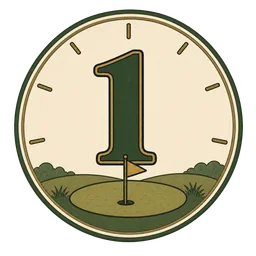 First RoundPlayed your first course
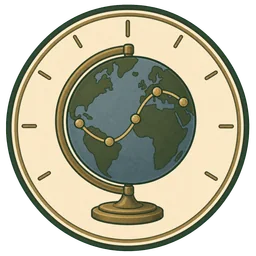 World TravelerPlayed courses in 5 countries
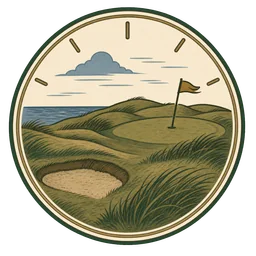 Links LoverPlayed 5 links courses
 Open Rota PilgrimPlayed 5 Open Championship venues
18 of 100 played
What is on the page
- A map of everywhere you have played.
- Your recent rounds, with the notes and photos you added.
- Badge progress broken down by category, with how far you are from the next one.
- The leaderboard, switchable by ranking.
Your golf passport
The passport is the travel view: a stamp for every country you have played in, in the order you first played there, plus a recap of your year.

Scotland
6 courses
First: Jun 2024

Ireland
3 courses
First: Sep 2025
Badges
Badges come from playing a certain number of courses, reaching new countries or regions, playing courses by a given architect, ticking off championship venues, or getting through a chunk of a ranking. They count unique courses — a course in three rankings still counts once.
Your leaderboard position only shows if your profile is public — see Settings below.
Community and following
Community is where you find other golfers, see what they have been playing, and borrow their lists.
- Follow golfers to see their rounds in your activity feed.
- Save someone’s public list to keep it beside your own, and like it to say thanks.
- A saved list shows what percentage of it you have played.
- Notifications appear in the bell in the top bar.
- You have a profile page of your own — your badge wall, the courses you have played, and a map of them.
Being findable requires a public profile. With a private profile you can still use everything — you just will not appear in the leaderboard or be discoverable by others.
Settings
Settings holds your profile and the handful of switches that change how the app behaves.
- Profile — avatar, header image, display name, and a short about.
- Home base — your country, and optionally region and city. This unlocks “Closest to Home” sorting, nearby course suggestions, and better trip routing.
- Privacy — public or private profile.
- Menu — choose which lists and rankings are pinned to your navigation.
- Replay the welcome tour, or sign out.
Your account
Accounts are free and take an email address and a password.
- After registering, confirm your email — if the message does not arrive, use the resend link on the sign-in screen.
- Forgotten your password? Reset it here.
- Where offered, you can sign in with Google or Apple instead.
Feedback
Something broken, missing, or just wrong? Send feedback — it is read.
Opening it from the page you are on carries that page along, so there is no need to explain where you were. Your recent submissions are listed with their status, so you can see what has been picked up.
Missing a course? The quickest route is the Course not found form inside the list builder.